
摘要:最近因项目需要在学习 QML,这个小控件作为对 QML 的一个小练习。控件是想模仿苹果的动态磁贴和windows的开始菜单磁贴效果,当然功能没有水果的强大了😂。内容很简单,没什么说的直接上源码吧。
QML (Qt Markup Language)或 Qt Meta Language 或 Qt Modeling Language 是基于 JavaScript 、宣告式编程的编程语言,用于设计用户界面为主的应用程序。它是Qt Quick,诺基亚开发的用户界面创建包的一部分。QML 主要用于移动应用程序,注重于触控输入、流畅的动画(60张/秒)和用户体验。QML documents 描述元素的对象树。
QML 元素可以透过标准 JavaScript 增强,包括这 inline 和引入.js 档。元素可以也无缝集成和使用 Qt 框架的 C++ 组件扩展。
语言的名称是 QML。runtime的名称是 QQuickView。
1、效果展示

2、DEMO 文件结构
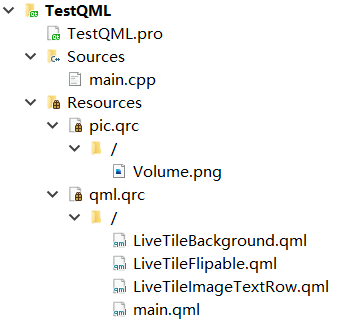
3、文件内容
LiveTileBackground.qml
import QtQuick 2.0
import QtQuick.Controls 2.2

Rectangle {

    property alias bgHeight: bg.height
    property alias bgWidth: bg.width
    property alias bgColor: bg.color

    id: bg
    width: 145
    height: 145
    color: "#222324"
    radius: 15
    border.color: "#bbbbbb"
    border.width: 1.5
    clip: true

}
LiveTileFlipable.qml
import QtQuick 2.0
import QtQuick.Controls 2.2
import QtQml 2.0

Flipable{

    id: flipable
    width: 145
    height: 145

    property alias flipFront: flipable.front
    property alias flipBack: flipable.back
    property alias overtimeTimer: timer
    property real opsOvertime: 4000
    property real rotationDuration: 1000
    property bool flipped: false
    property bool autoFlip: true

    Timer {
        id: timer
        interval: opsOvertime
        repeat: false
        onTriggered: {
            flipable.flipped = false
        }
    }

    MouseArea {
        id: mouseArea
        anchors.fill: parent
        propagateComposedEvents: true

        onDoubleClicked: { mouse.accepted = false;}
        onPositionChanged: { mouse.accepted = false;}
        onPressed:  {
            console.log("onClicked")
            if(autoFlip === true){
                flipable.flipped = true
                timer.start()
            }
            else{
                flipable.flipped = !flipable.flipped
            }

            mouse.accepted = false;
        }
        onPressAndHold: { mouse.accepted = false; }
        onClicked:  { mouse.accepted = false;}
        onReleased: { mouse.accepted = false;}
        onWheel: { wheel.accepted = false; }
    }

    transform: Rotation{
        id: rotation
        origin.x: flipable.width/2
        origin.y: flipable.height/2
        axis{x:0; y:1; z:0}
        angle: 0
    }

    states:State {
            name: "back"
            PropertyChanges {
                target: rotation
                angle: 180
            }
            when: flipable.flipped
        }

    transitions: Transition {
        NumberAnimation {
            target: rotation
            property: "angle"
            duration: rotationDuration
        }
    }
}
LiveTileImageTextRow.qml
import QtQuick 2.0
import QtQuick.Controls 2.2
import QtQuick.Layouts 1.0

LiveTileBackground{
    id: backgroundLable
    width: 281
    height: 100

    property alias tileImageVisible: tileImage.visible
    property alias tileImageSource: tileImage.source
    property alias tileLableText: tileLable.text
    property alias tileLableVisible: tileLable.visible

    RowLayout {
        id:layout
        anchors.fill: parent
        anchors.rightMargin: 10
        anchors.leftMargin: 10
        spacing: 0

        Image {
            id: tileImage

            sourceSize.height: 60
            sourceSize.width: 60

            fillMode: Image.PreserveAspectFit

            anchors.verticalCenter: parent.verticalCenter
            Layout.preferredHeight: parent.height - 20
            Layout.preferredWidth: parent.height - 20

        }

        Item {
            id: spacer
            Layout.fillHeight: true// spacer item
            Layout.fillWidth: true
        }

        Text {
            id: tileLable
            color: "#ffffff"
            font.pixelSize: 40
            horizontalAlignment: Text.AlignRight
            verticalAlignment: Text.AlignVCenter
            fontSizeMode: Text.Fit
            minimumPixelSize: 12

            anchors.verticalCenter: parent.verticalCenter
            Layout.preferredHeight: parent.height - 20
            Layout.preferredWidth: parent.width - tileImage.width - 20

        }
    }

}
main.qml
import QtQuick 2.9
import QtQuick.Window 2.2
import QtQuick.Controls 2.2

Window {
    width: 200
    height: 150
    visible: true

    LiveTileFlipable {
        id: volumeFlipable
        width: parent.width
        height: parent.height

        flipFront: LiveTileImageTextRow {
            id: volumeLable
            tileImageSource: "qrc:/Volume.png"
            tileLableText: "10"
            anchors.fill: parent
            anchors.margins: 10
        }

        flipBack: LiveTileBackground {
            anchors.fill: parent
            anchors.margins: 10

            Slider{
                id: volumeSlider
                width: parent.width
                height: parent.height/2
                value: 0.4
                anchors.margins: 5
                anchors.centerIn: parent
                onValueChanged: {
                    volumeFlipable.overtimeTimer.restart()
                }
            }
        }
    }
}
4、知识点
主要是利用了 QML 的 Flipable 类型,通过 front 和 back 两个属性来设置卡片的正反两面,再利用 Rotation, State 和 Transition类型实现了反转的动画效果。
注意点:
- 在 LiveTileFlipable.qml 文件中鼠标事件需要透传,否则卡片背面的的 slider 控件无法获取鼠标事件。
